How to Install an EA in MT5 for Beginners
An Expert Advisor (EA) is a program that runs a trading strategy automatically in MetaTrader 5. Installing one is not difficult, but a few small settings are often missed, so the EA looks installed yet never opens a position. This guide walks through the steps one by one.
What are an EA and an .ex5 file?
An EA is a trading robot that runs inside the MetaTrader terminal. MT5 EA files usually come as .ex5 (a ready-to-run program) or .mq5 (source code that must be compiled first). Indicators use the same file formats but are stored in a different folder.
Before you start
- MetaTrader 5 desktop is installed and logged in to a trading account (demo or real).
- You have the EA file and, if required, a license key from the EA provider.
- Use a VPS if the EA will run 24 hours a day.
Steps to install an EA in MT5
- Open the data folder. In MT5 choose File › Open Data Folder.
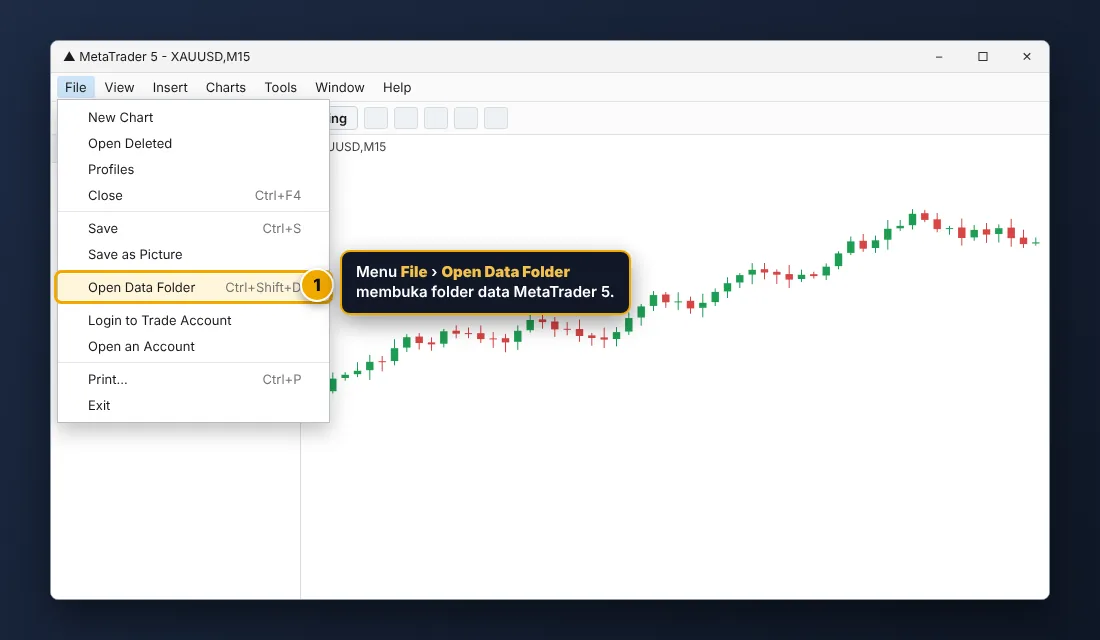
Illustration of the MetaTrader 5 interface. - Copy the file to the right folder. EAs go into
MQL5 › Experts. Indicators go intoMQL5 › Indicators.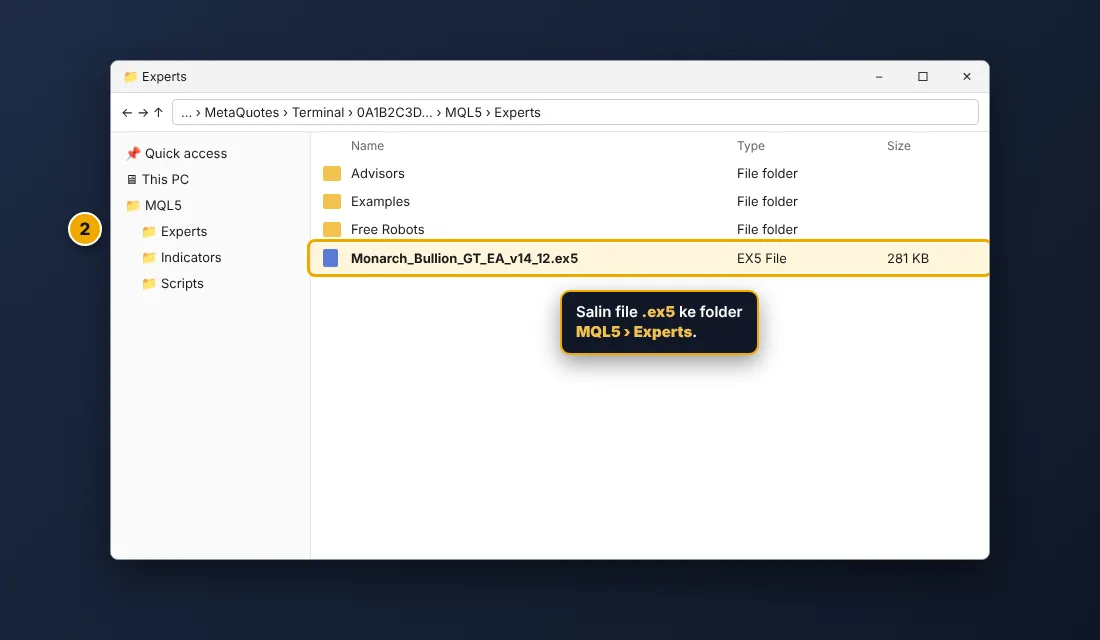
Illustration of the MetaTrader 5 interface. - Compile if the file is .mq5. Double-click the file to open it in MetaEditor, press F7, and make sure the result shows 0 errors. An .ex5 file does not need compiling.
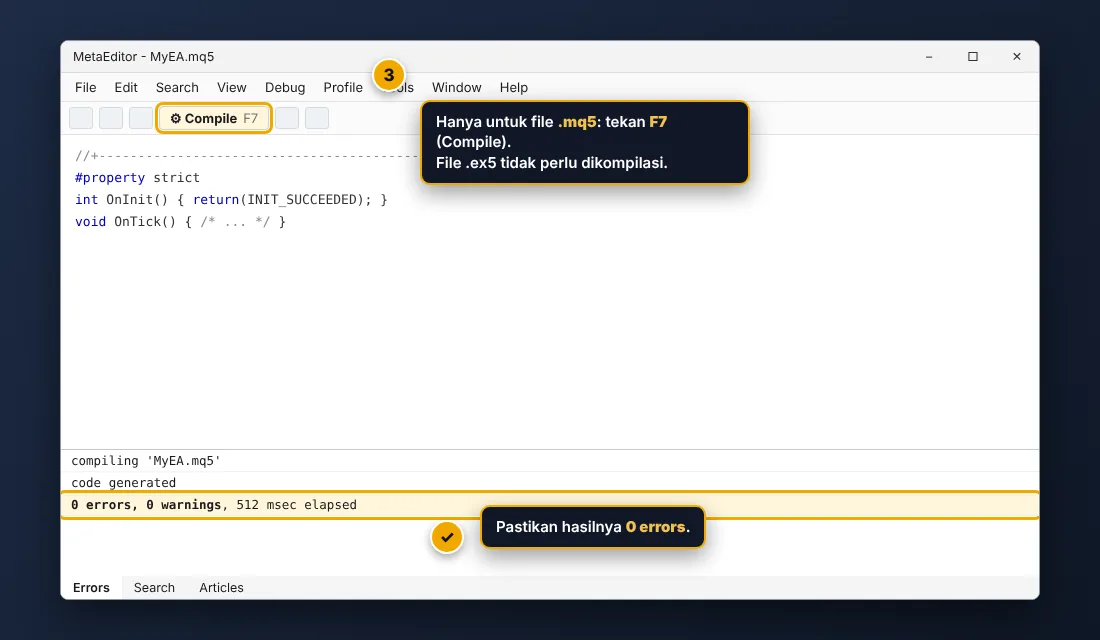
Illustration of the MetaEditor interface. - Refresh the Navigator. Back in MT5, right-click Expert Advisors in the Navigator panel and choose Refresh. The EA name will appear in the list.
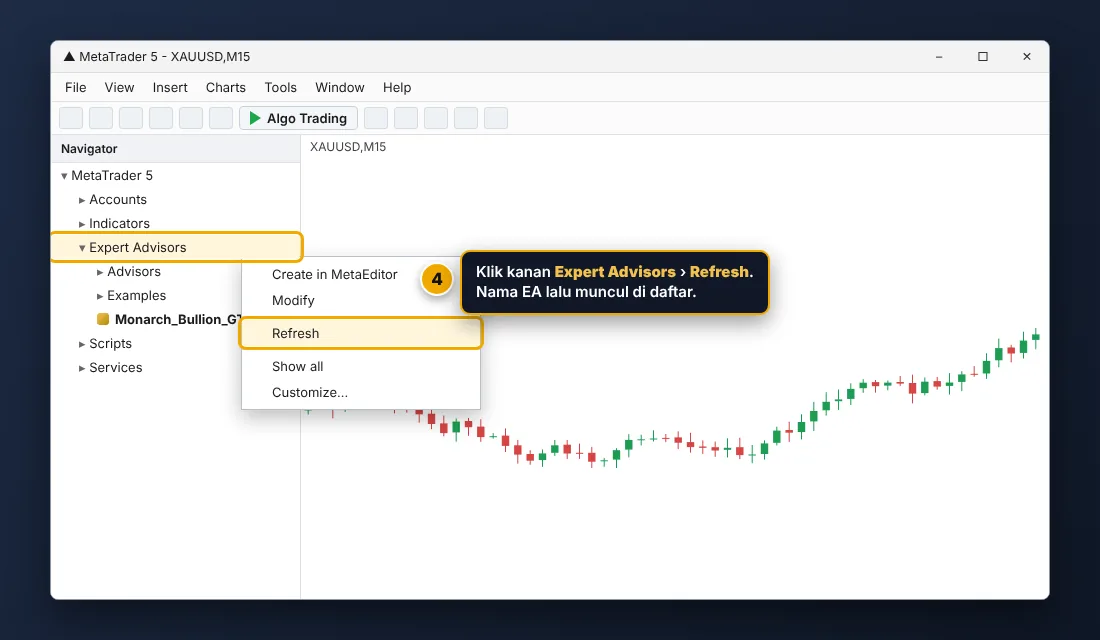
Illustration of the MetaTrader 5 interface. - Enable Algo Trading. The Algo Trading button on the toolbar must be green.
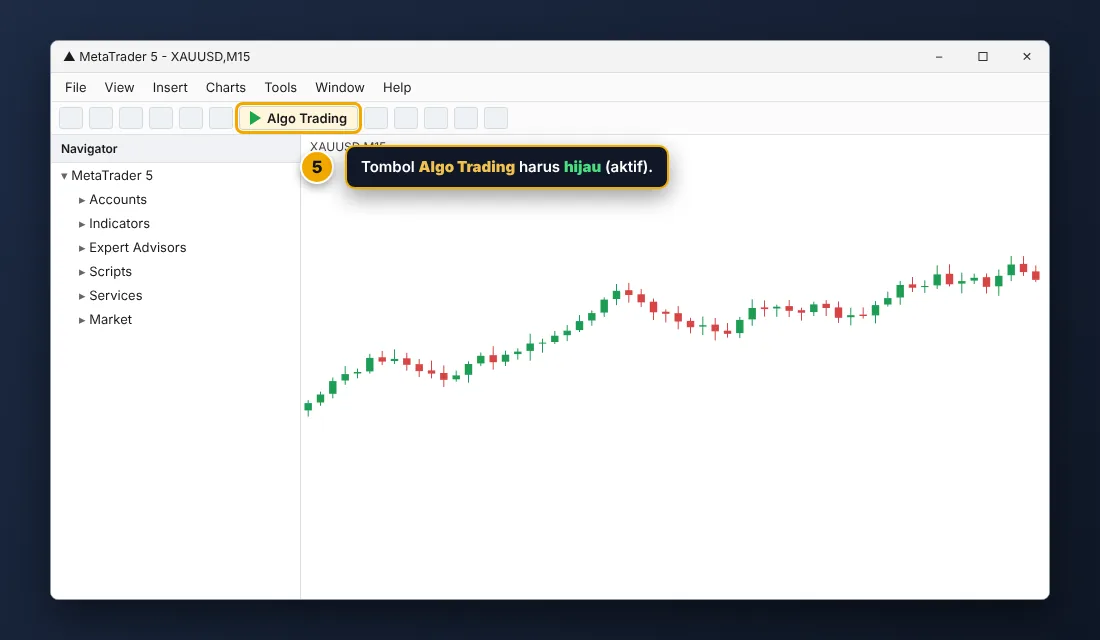
Illustration of the MetaTrader 5 interface. - Attach the EA to a chart. Drag the EA onto the chart of the symbol recommended in its guide (for example XAUUSD for a gold EA). On the Common tab, tick Allow Algo Trading.
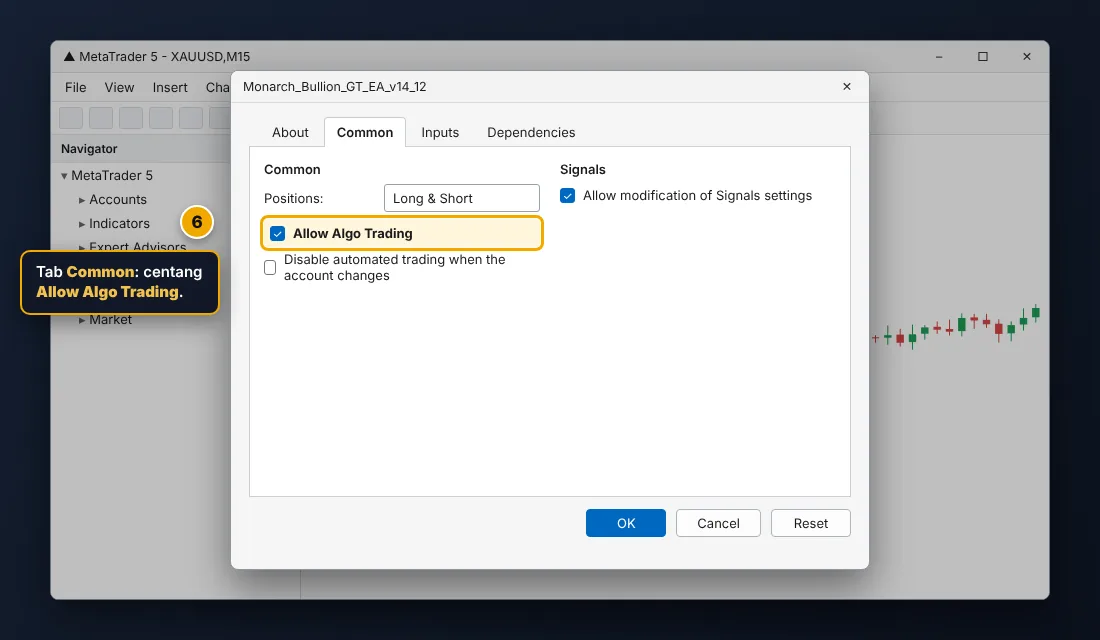
Illustration of the MetaTrader 5 interface. - Fill in the settings on the Inputs tab. Enter your license key if you have one. For a first test, use the default settings or an official preset from the EA provider.
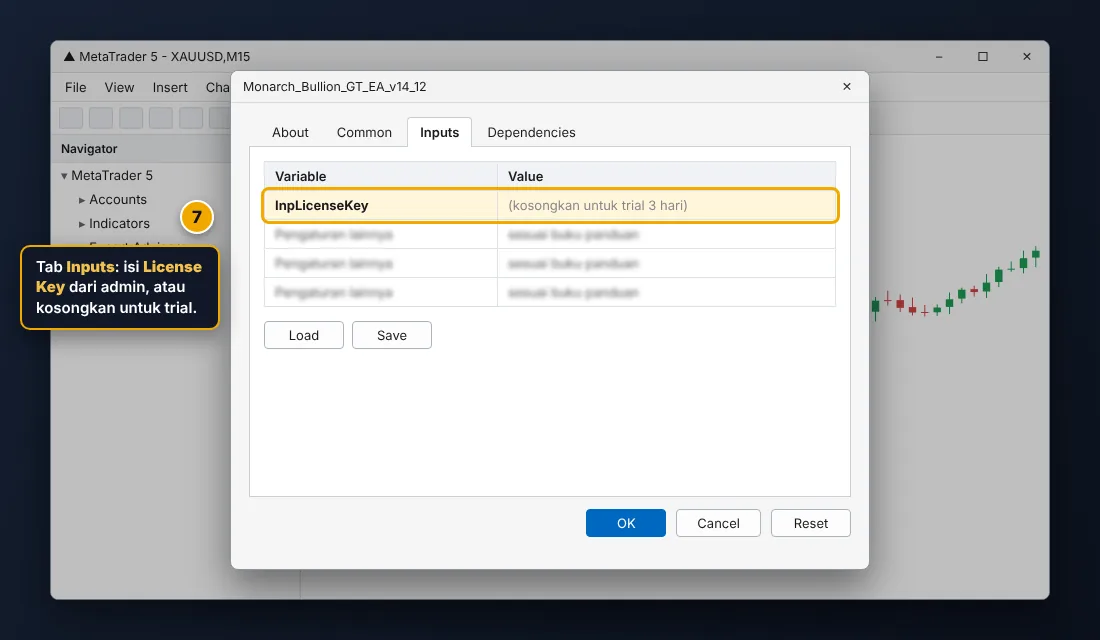
Illustration of the MetaTrader 5 interface. - Check that it is running. The EA panel appears on the chart and the Experts tab at the bottom of MT5 shows no error messages.
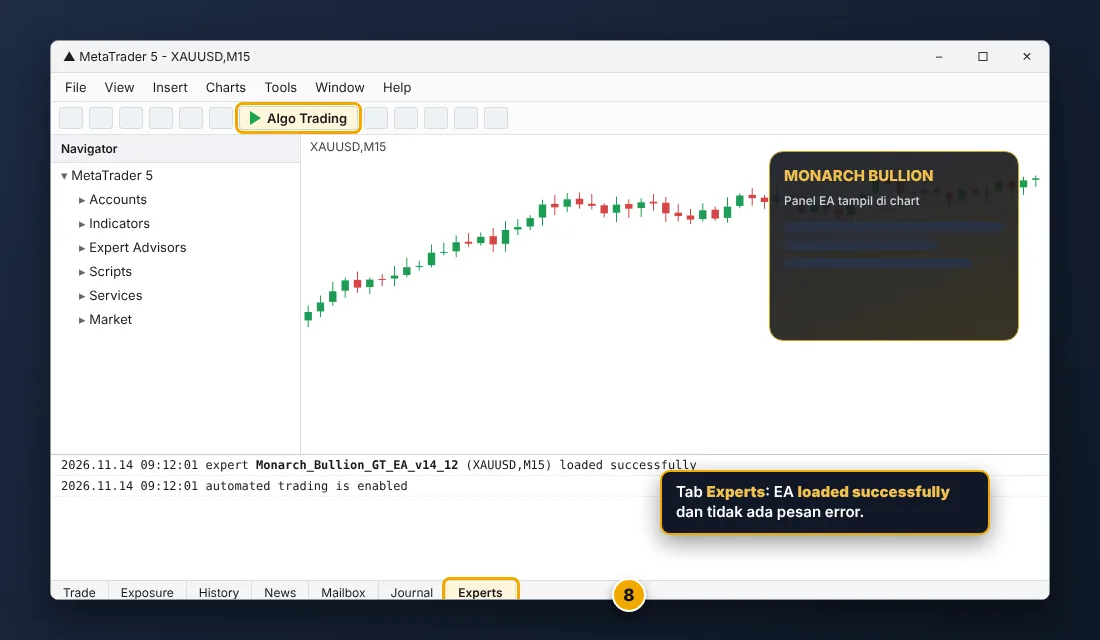
Illustration of the MetaTrader 5 interface.
Common problems
| Symptom | Common cause | Fix |
|---|---|---|
| The EA does not appear in the Navigator | The file was copied to the wrong folder | Make sure it is in MQL5\Experts, then Refresh |
| The EA icon on the chart is grey | Algo Trading is not enabled | Click the Algo Trading button and tick Allow Algo Trading |
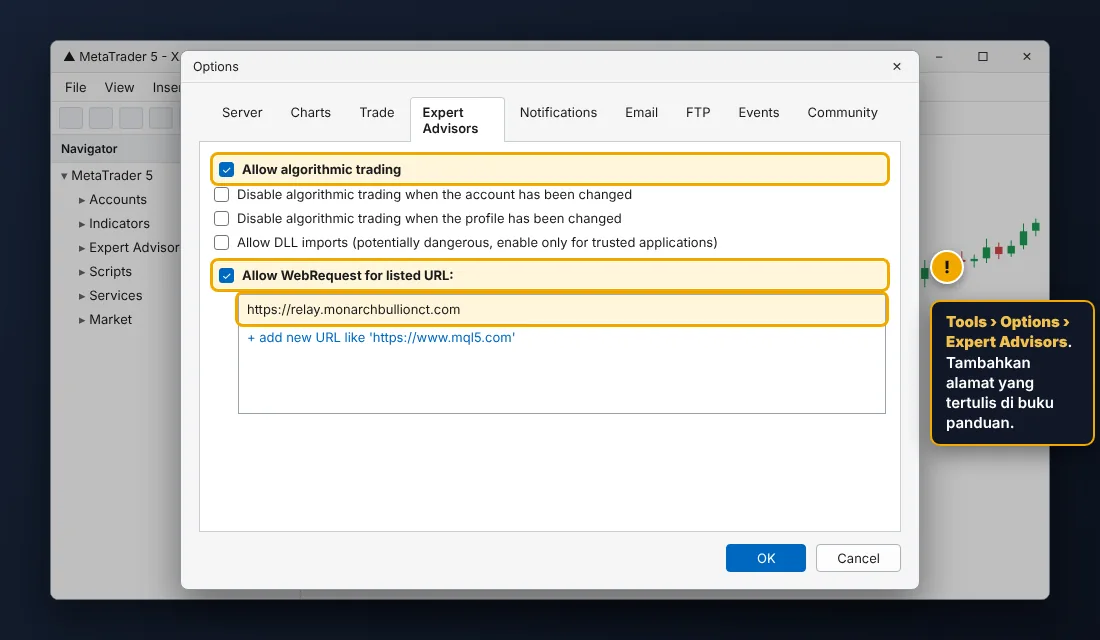
| Error 4014 on the Experts tab | The server address is not allowed | Add the URL under Allow WebRequest |
| The EA is running but opens no positions | Session, spread or license filters | Read the messages on the Experts tab and check the filter settings |
| The EA stops when the PC is turned off | MT5 closes with it | Run MT5 on a VPS |
Tips for using EAs
- Test on a demo account first for a few days before using real money.
- One EA, one chart per account, unless the guide says otherwise.
- Set your risk from the start: lot size, drawdown limit and daily target.
- Save presets of settings that work for you with the Save button on the Inputs tab.
Every Monarch Bullion EA and indicator comes with a PDF user guide that you can download from the Download page, and can be tried free during a trial period. The guides are written in Indonesian; if you need help in English, ask the admin.
Try free for 3 days
Register as a free member to download EAs and user guides, or ask the admin to help you choose the right product.
More articles
Trading forex, gold and crypto carries high risk. Past performance does not guarantee future results. Monarch Bullion is a trading software provider, not a broker, investment manager or financial adviser.