Complete Guide to Renting a VPS and Installing an EA on It
EAs and copy trading Receivers only work while MetaTrader 5 is open and connected to the internet. If your laptop is turned off, the internet drops or the power goes out, the EA stops too. A VPS (Virtual Private Server) is a Windows computer in a data centre that runs 24 hours a day, so MT5 and your EA keep running even when your own computer is off. This guide covers every step, from choosing a plan to having the EA running on the VPS.
1. Recommended VPS specifications
| Usage | RAM | CPU | Storage |
|---|---|---|---|
| 1 MT5 account, 1–2 EAs (for example CT Receiver or YinYang Dynamic) | 2 GB | 1–2 cores | 30 GB or more |
| 2–3 MT5 accounts, or many charts and indicators | 4 GB | 2 cores | 40 GB or more |
| 4 or more MT5 accounts, AI Trading Plan on many pairs | 8 GB | 4 cores | 60 GB or more |
- Windows operating system. Choose a Windows VPS plan (Windows Server or Windows 10/11). All Monarch Bullion products are MetaTrader 5 files for Windows.
- Server location close to your broker. The closer the VPS is to your broker's server, the lower the execution delay (ping). Choose a location near your broker's servers, for example London, New York or Asia. You can see the ping in the bottom-right corner of MT5 after logging in.
- 1 GB of RAM is too tight for the latest MT5. Start from 2 GB so Windows and MT5 run smoothly.
2. Recommended VPS providers
We recommend the two providers below because they offer Windows VPS plans made for forex and can be ordered online on your own.
SocialVPS
- Classic VPS Windows plans for forex trading, with servers in New York, the United States, the United Kingdom and Asia.
- Options from 1 core / 1 GB up to 4 cores / 8 GB; prices are listed in US dollars on its website and are lower when paid yearly.
- The VPS activates automatically after payment; access is via RDP.
- Choose at least a 2 GB RAM plan for MT5.
Digitalku
- VPS Forex Windows plans for MT4/MT5, Remote Desktop access, online 24 hours.
- Prices on its website start at about Rp 52,000 per month (checked 14 November 2026; may change). The website and support are in Indonesian.
- It also offers VPS Forex digiOS, a lightweight system made by Digitalku. For Monarch Bullion products we recommend the Windows plans.
- Support via ticket, WhatsApp and Digitalku's official Telegram.
3. How to order a VPS
The ordering flow is similar at both providers because both use a client portal. Button labels may differ slightly.
- Open the provider link above, then go to the forex VPS or Windows VPS plans page.
- Choose a plan using the specification table. For a beginner with one account, a 2 GB RAM plan is enough.
- Set the order options: Windows operating system, server location (the one closest to your broker), and billing period (monthly or yearly).
- Continue to checkout and create a client account with the provider using your active email. Keep the password for this client account safe.
- Pay the invoice with a method available on the provider's website. Pay only on the provider's official portal, never through an intermediary.
- Wait for the VPS access details. Once payment is confirmed, the provider emails your access details or shows them in the client portal (under Services / My Services): the IP address, the username (usually
Administrator) and the password. An RDP port number is sometimes included.
4. Connecting to the VPS with Remote Desktop
From a Windows computer
- Press Windows + R, type
mstscand press Enter. The Remote Desktop Connection window opens.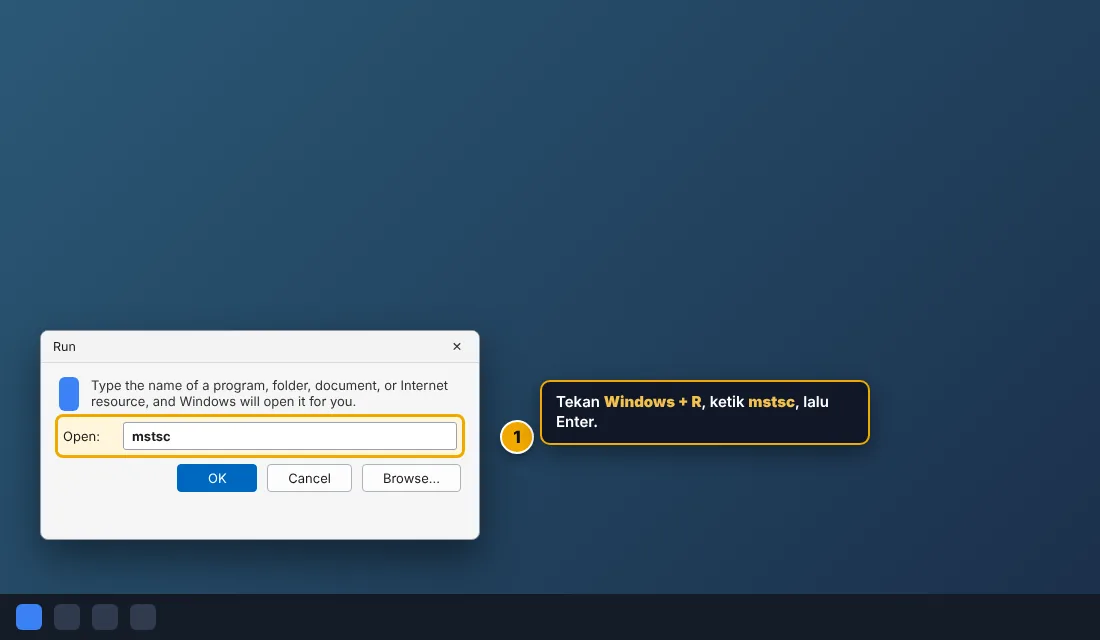
Illustration of the Windows interface. - In the Computer field, enter the VPS IP address. If the provider gave you a custom port, use the format
IP:port, for example103.10.20.30:3389.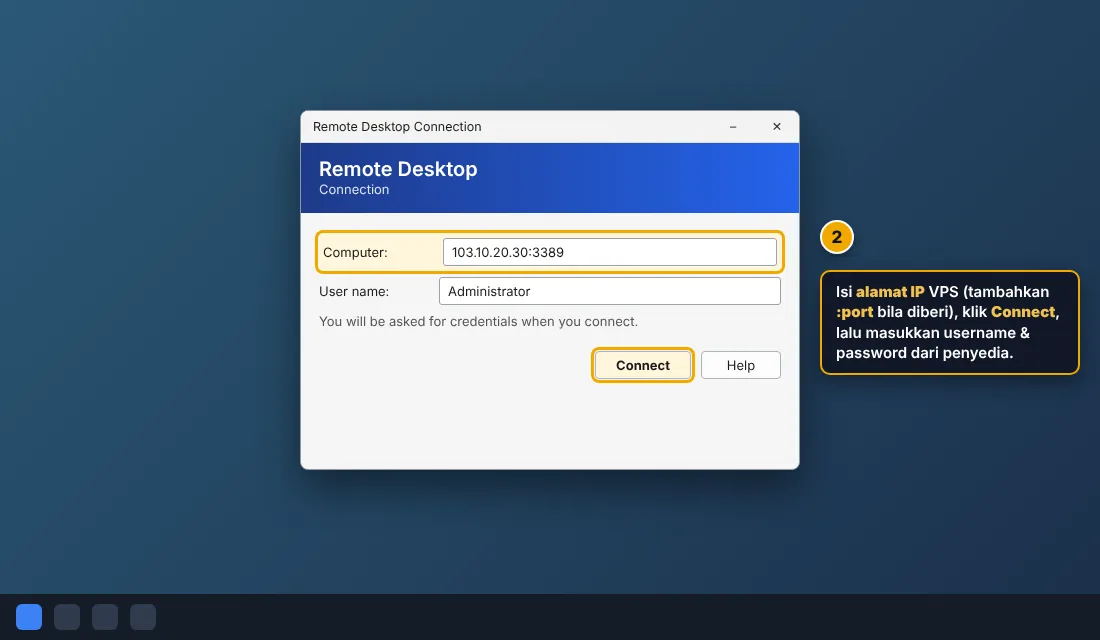
Illustration of the Windows interface. - Click Connect, enter the username and password from the provider, then click OK. If a certificate warning appears, tick Don’t ask me again and choose Yes.
- The VPS Windows desktop appears. You are now working inside the VPS.
From a phone or Mac
Install Microsoft's Windows App (formerly Microsoft Remote Desktop) from the Play Store, App Store or Mac App Store. Choose Add PC, enter the IP address, username and password, then connect.
5. Installing MetaTrader 5 on the VPS
- Download MT5 from your broker. Open a browser inside the VPS, go to your broker's official website and download MetaTrader 5 for Windows. The broker's version already contains its server list.
- Run the installer and follow the steps until MT5 opens.
- Log in to your trading account. Choose File › Login to Trade Account, enter your account number, trading password and the broker's server name. Tick Save password so MT5 can log in again on its own.
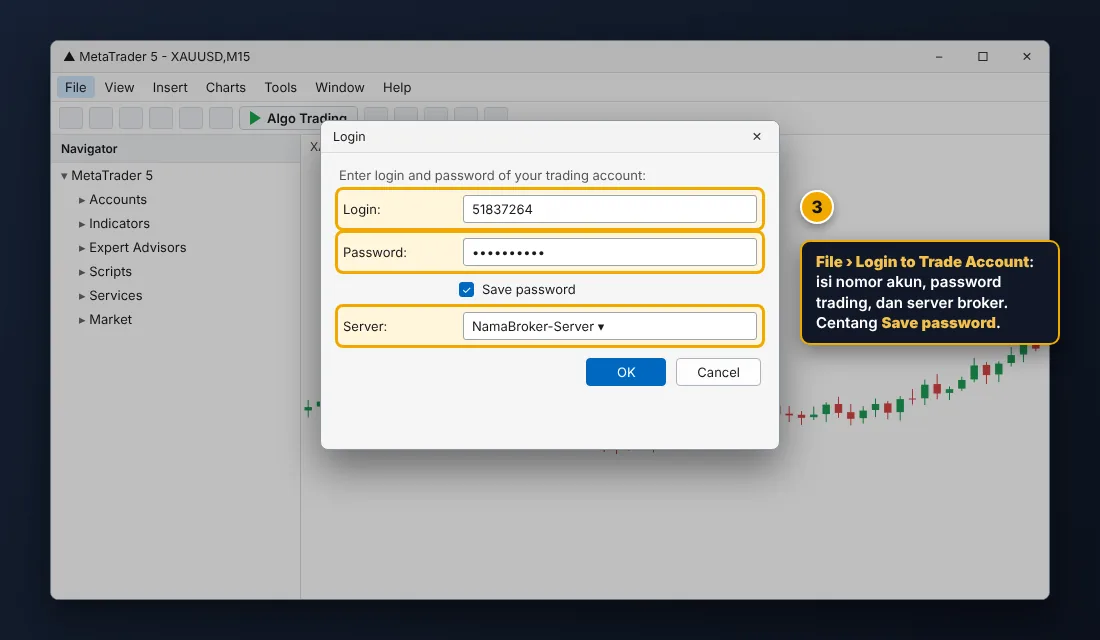
Illustration of the MetaTrader 5 interface. - Check the connection. The bottom-right corner of MT5 should show a ping value (for example
12.5 ms), not No connection or Invalid account.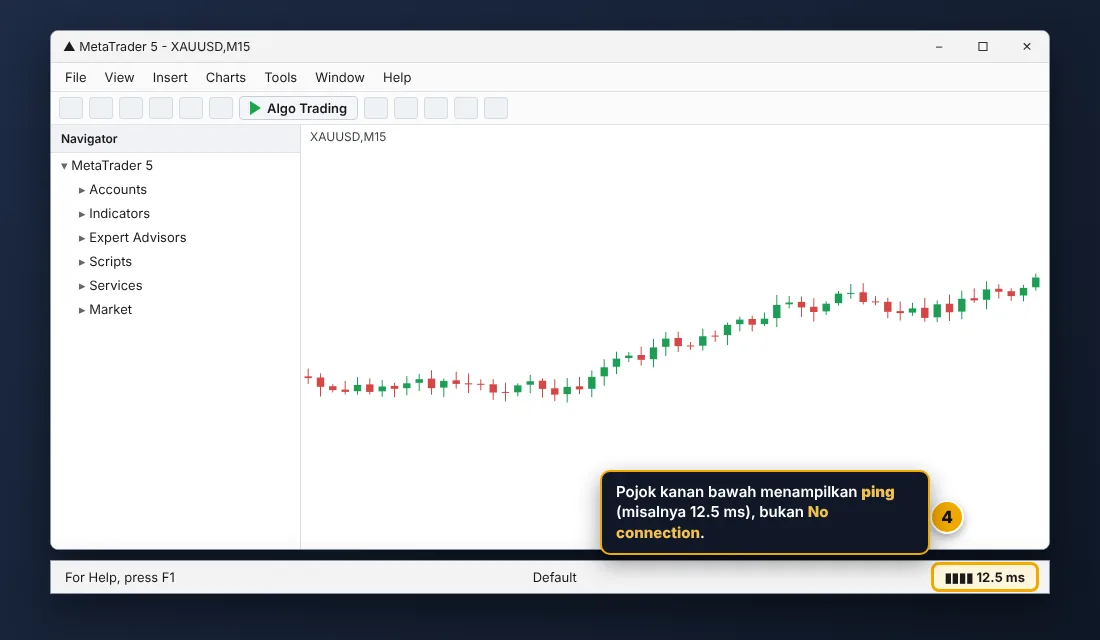
Illustration of the MetaTrader 5 interface.
You type your trading password only into your own MT5. Monarch Bullion never asks for your account's trading (master) password.
6. Downloading and installing the EA on the VPS
- Download the files from the website. In the VPS browser, open the Member Area, sign in, then open the Download page. Download your product's
.ex5file and its user guide. Alternatively, copy the file on your computer (Ctrl + C) and paste it (Ctrl + V) onto the VPS desktop through Remote Desktop.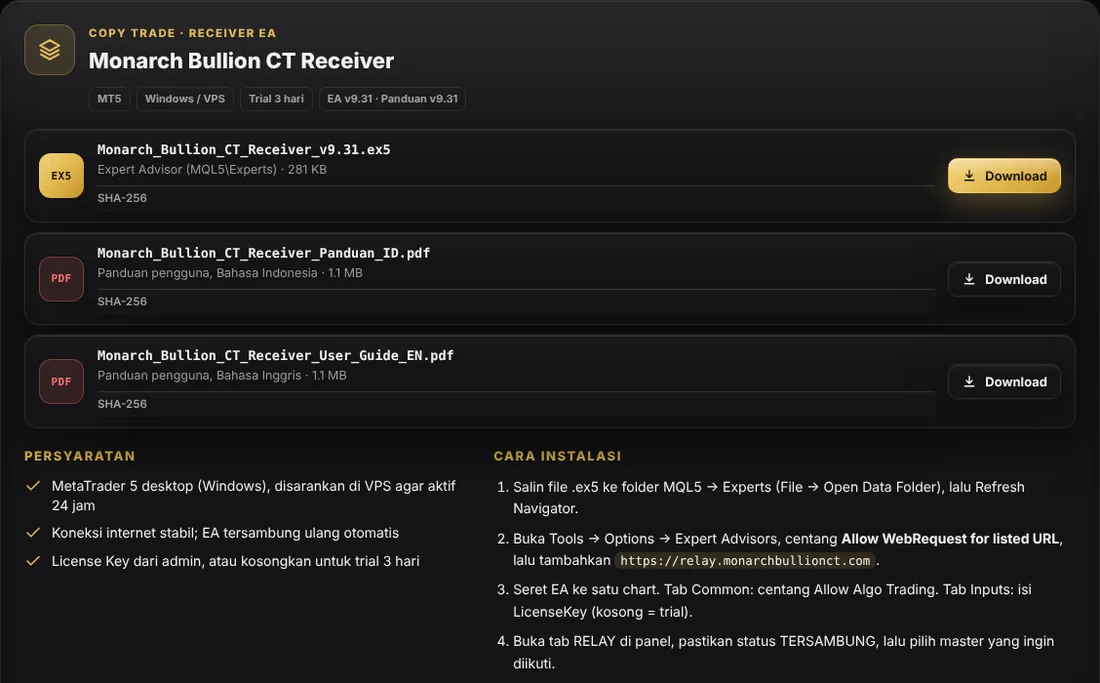
Example: the CT Receiver card on the Download page. - Copy it to the MT5 folder. In MT5 choose File › Open Data Folder. EAs go into
MQL5 › Experts, indicators intoMQL5 › Indicators.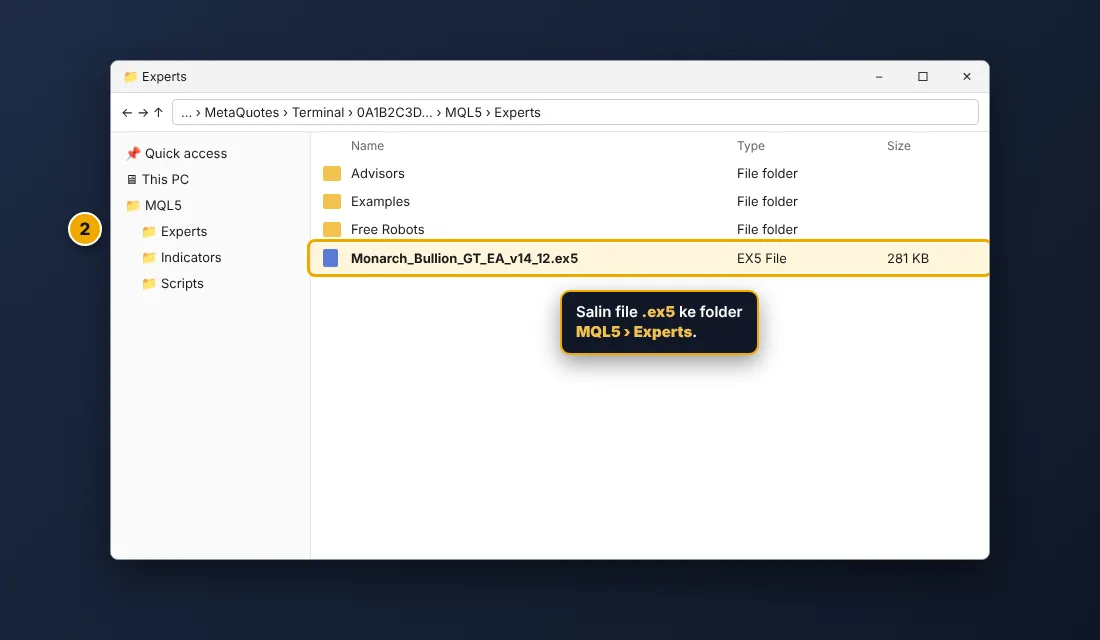
Illustration of the MetaTrader 5 interface. - Refresh the Navigator. Right-click Expert Advisors (or Indicators) in the Navigator panel and choose Refresh.
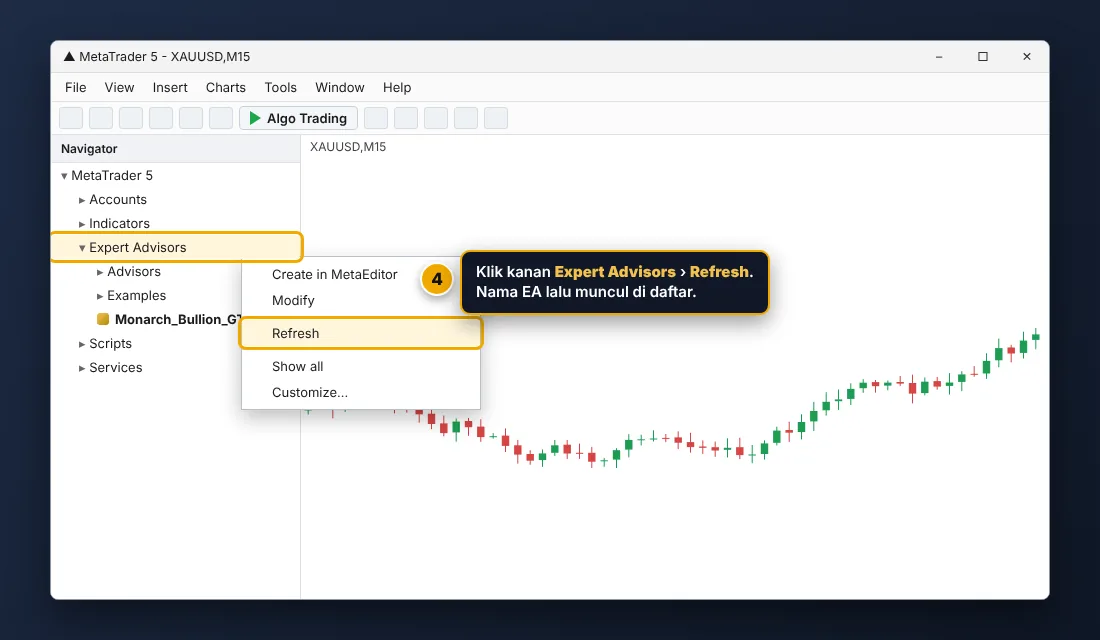
Illustration of the MetaTrader 5 interface. - Allow Algo Trading. Open Tools › Options › Expert Advisors and tick Allow algorithmic trading. If the product's guide asks for a WebRequest address (for example the copy trading Receiver or AI Trading Plan), tick Allow WebRequest for listed URL and add the address listed in the guide.
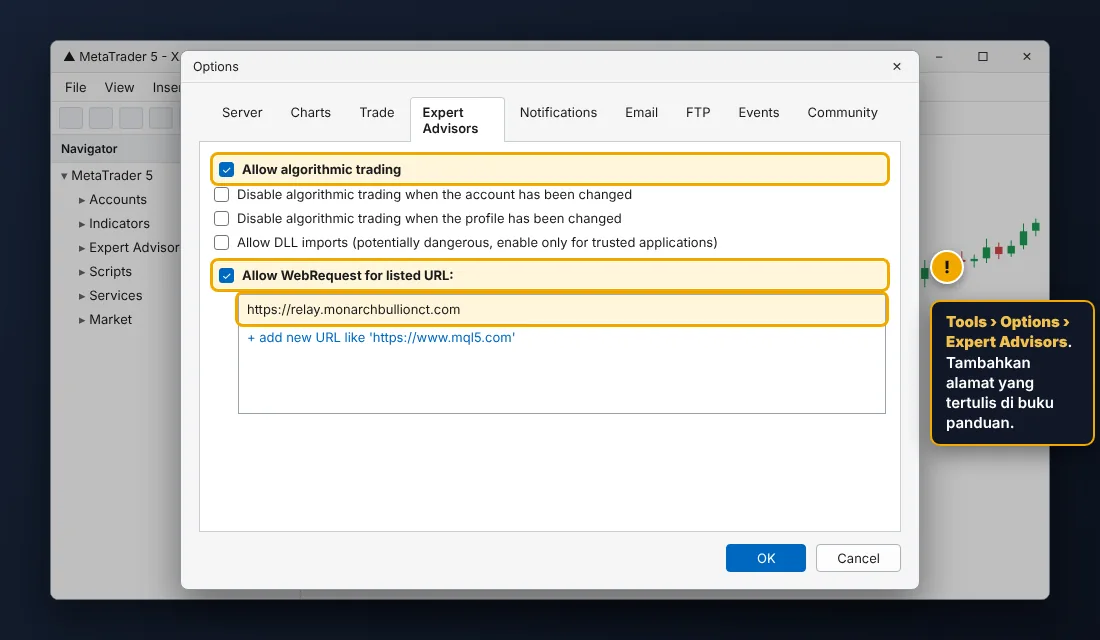
Illustration of the MetaTrader 5 interface. - Open the right chart. Open the symbol and timeframe recommended in the user guide, for example XAUUSD for a gold EA.
- Attach the EA to the chart. Drag the EA from the Navigator onto the chart. On the Common tab, tick Allow Algo Trading.
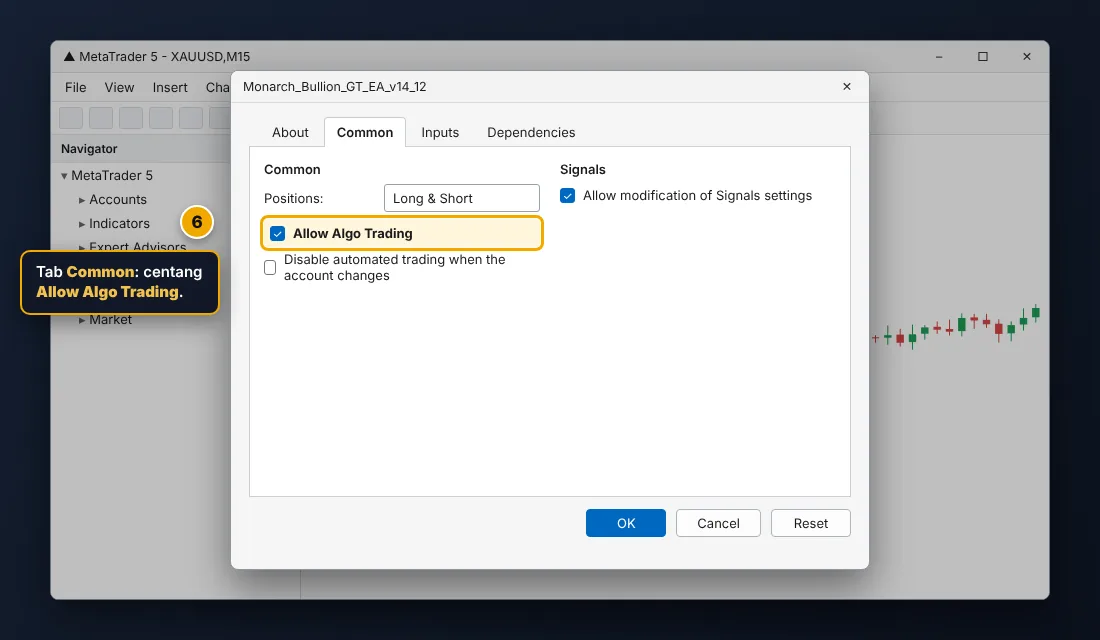
Illustration of the MetaTrader 5 interface. - Enter the License Key. On the Inputs tab, leave
InpLicenseKeyempty to try the 3-day trial, or enter the License Key from the admin for that MT5 account number. Then click OK.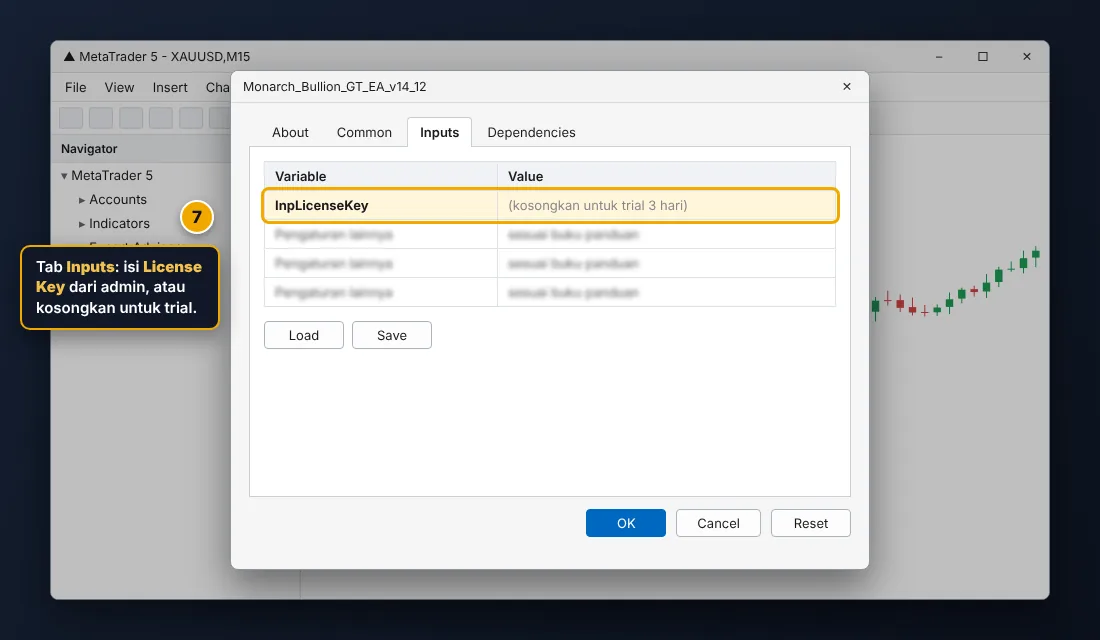
Illustration of the MetaTrader 5 interface. - Turn on the Algo Trading button on the MT5 toolbar until it is green. The EA panel appears on the chart and the Experts tab at the bottom shows no error messages.
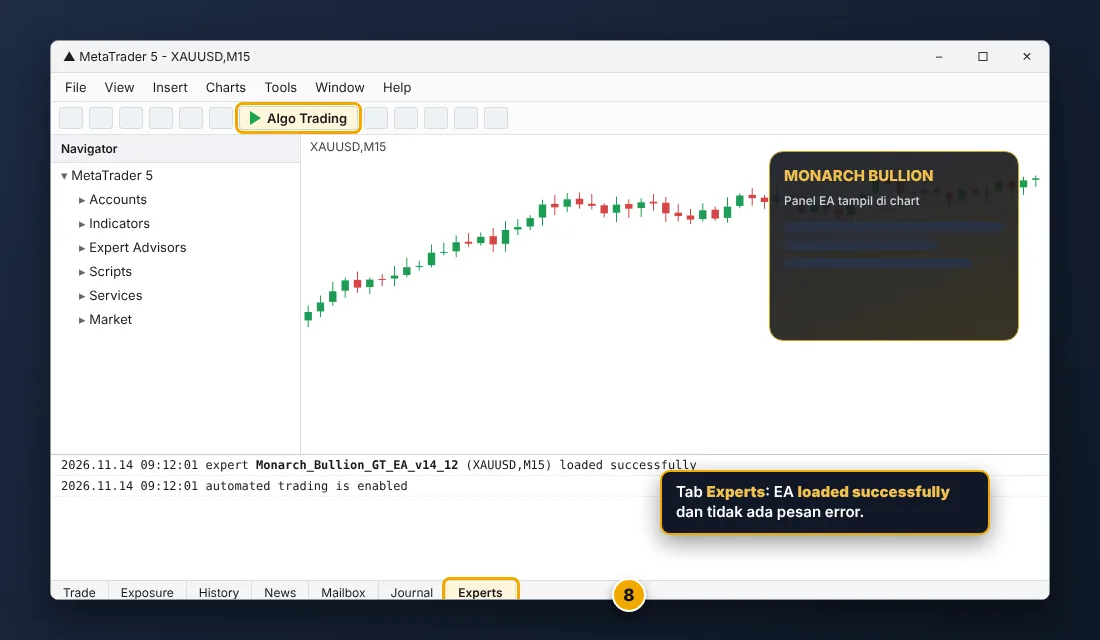
Illustration of the MetaTrader 5 interface.
7. Keeping the EA running 24/7
- Close the Remote Desktop window with the X button (Disconnect). Do not choose Sign out or Log off, because that closes MT5 and stops the EA.
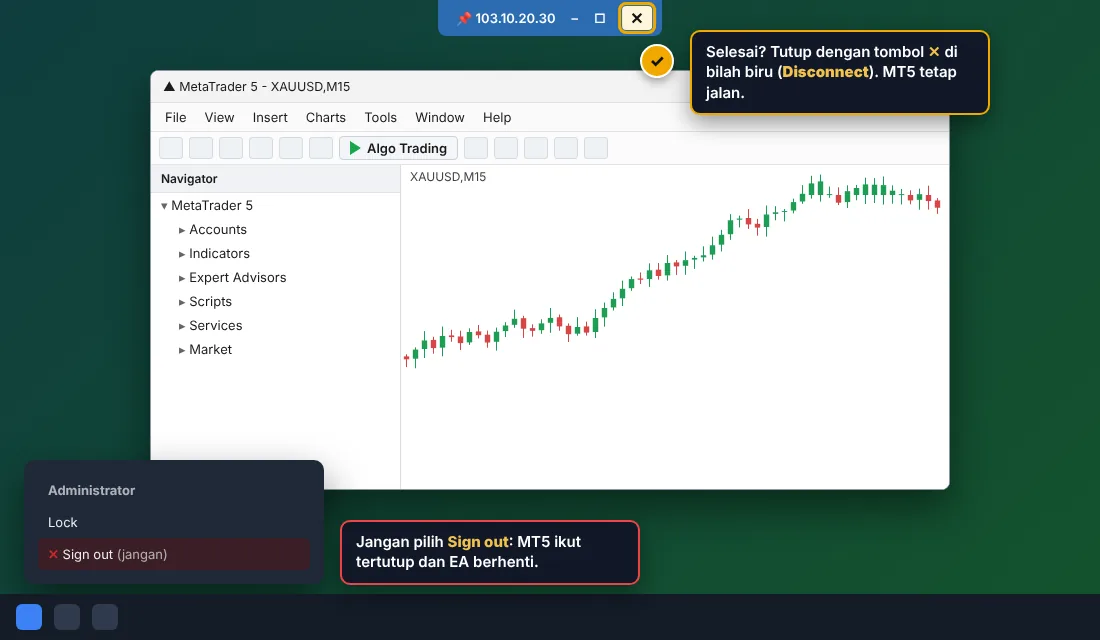
Illustration of the Windows interface. - Do not shut down the VPS. If the VPS needs a restart, open MT5 again afterwards; the charts and EAs that were last attached will reappear.
- Open MT5 automatically when the VPS starts. Press Windows + R, type
shell:startup, then copy the MetaTrader 5 shortcut into the folder that opens.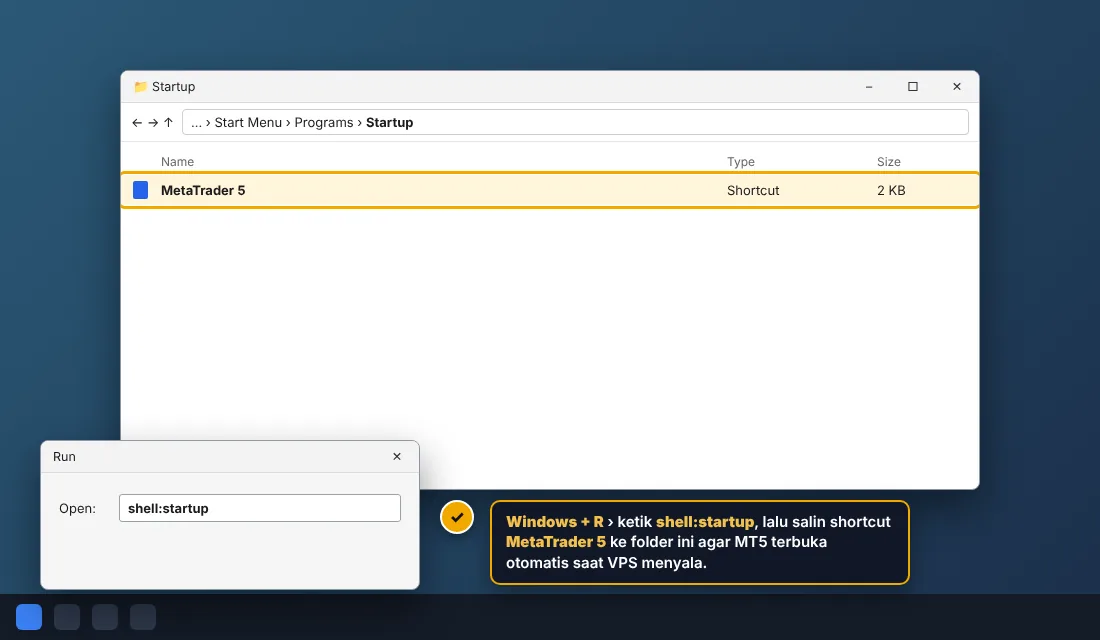
Illustration of the Windows interface. - Save memory. Under Tools › Options › Charts, lower Max bars in chart (for example to 50,000) and close charts you do not use.
- Check regularly. Log in to the VPS now and then to make sure the ping is normal, the Algo Trading button is green, and there are no errors on the Experts and Journal tabs.
- Renew the VPS before it expires. A VPS that is paid late is usually switched off by the provider, and the EA stops with it.
8. Common problems
| Symptom | Common cause | Fix |
|---|---|---|
| Remote Desktop cannot connect | Wrong IP or port, the VPS is off, or your internet has a problem | Check the access details, start or restart the VPS from the provider's client portal, then try again |
| The RDP password is rejected | A typo, or the password has been changed | Use the password reset feature in the client portal, or contact the provider's support |
| MT5 shows No connection | Wrong broker server or wrong trading password | Log in again via File › Login to Trade Account with the correct server |
| The EA stops after closing RDP | Sign out was chosen instead of closing the window | Open MT5 again, then close RDP with the X button |
| The VPS feels very slow | RAM is full because of too many MT5 terminals or charts | Close unused charts, or upgrade the VPS plan |
| An invalid license message | The License Key belongs to another account number | Make sure the account number in MT5 matches the registered one, then contact the admin |
VPS service issues (billing, server down, RDP access) are handled by the VPS provider's support. EA, indicator and License Key issues are handled by the Monarch Bullion admin.
9. Security tips
- Use a strong VPS password that is different from your other passwords.
- Never share your VPS access details or trading password with anyone, including partners. The Monarch Bullion admin will never ask for them.
- Install on the VPS only files from this website or from the official admin, and compare the SHA-256 code on the Download page if in doubt.
- Test the EA on a demo account before using real money.
Try free for 3 days
Register as a free member to download EAs and user guides, or ask the admin to help you choose the right product.
More articles
Trading forex, gold and crypto carries high risk. Past performance does not guarantee future results. Monarch Bullion is a trading software provider, not a broker, investment manager or financial adviser.